Build Your First MCP Server in Node.js: A Step-by-Step Guide
In the previous post (replace with the link to the first post), we covered the theory: what MCP is, why it exists, and how hosts, clients, and servers talk to each other. Now we'll build one.
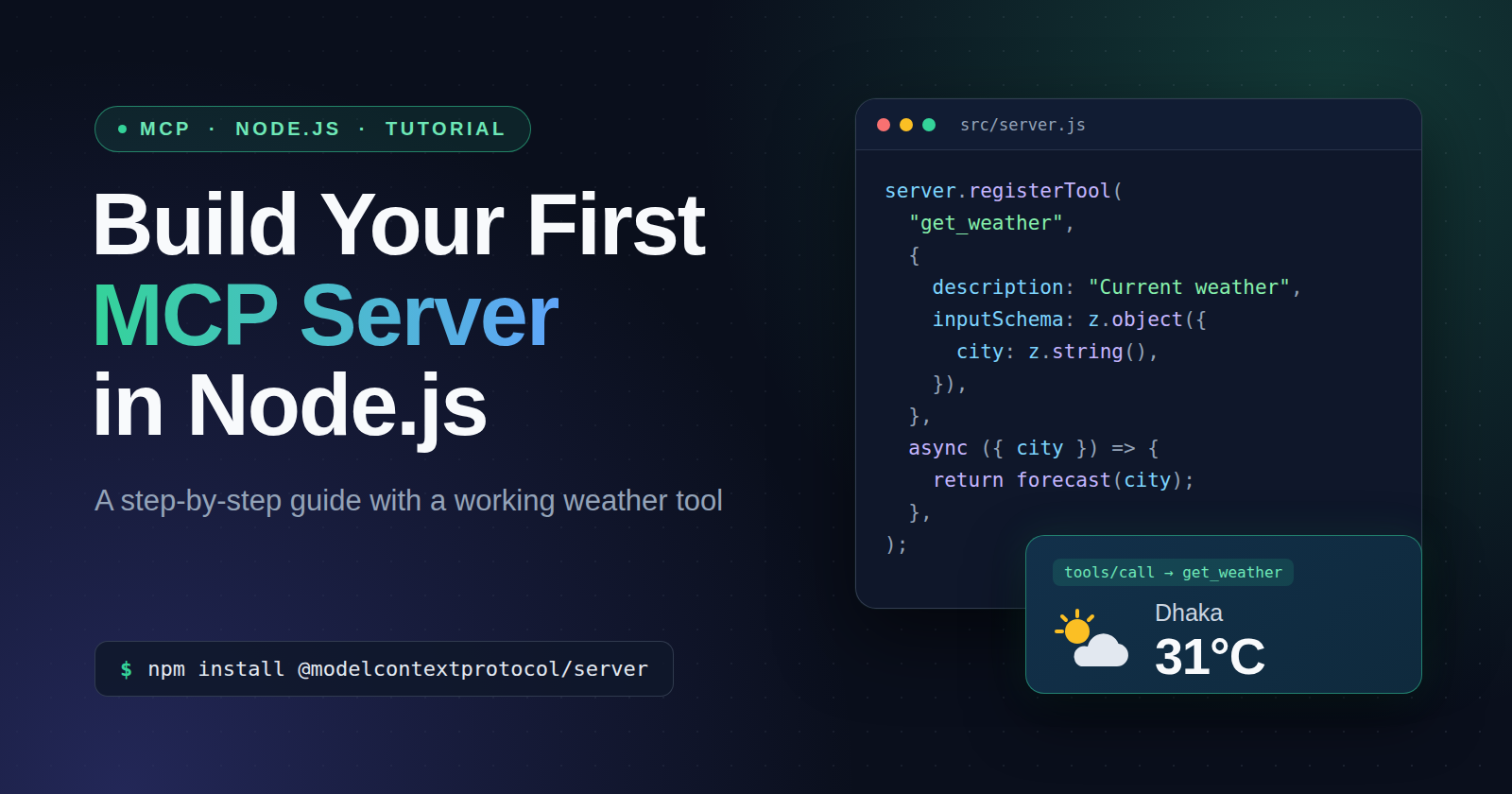
By the end of this post you'll have a working weather MCP server in plain JavaScript. It exposes one tool, get_weather, that an AI assistant can call to answer questions like "Do I need an umbrella in Dhaka today?" You'll test it by hand, then connect it to a real AI client.
The whole server is about 150 lines and uses a free weather API that needs no key. You only need basic JavaScript and a terminal.
1. Project setup
What you need
- Node.js 20 or newer. Check with
node -v. - npm, which comes with Node.
- A code editor and a terminal.
Create the project
mkdir weather-mcp
cd weather-mcp
npm init -y
npm pkg set type=module
The last command adds "type": "module" to package.json. It tells Node to treat .js files as ES modules, so we can write import statements instead of require().
Install the dependencies
npm install @modelcontextprotocol/server zod
@modelcontextprotocol/serveris the official MCP SDK for building servers. It handles the protocol details from the last post (JSON-RPC messages, the initialize handshake, tool discovery), so we only write the interesting part.zodis a schema library. We'll use it to describe the inputs our tool accepts, and the SDK will validate every call against that schema before our code runs.
A note on versions: the TypeScript/JavaScript SDK has two generations. Many tutorials online still use the older v1 package,
@modelcontextprotocol/sdk, with methods likeserver.tool(). This post uses the current v2 package (@modelcontextprotocol/server) and itsregisterTool()method. If you copy code from an older article and get errors, a v1/v2 mix-up is the first thing to check.
Create the folder structure
mkdir src
We'll build the server up in stages, and it will end up as three small files:
weather-mcp/
├── package.json
└── src/
    ├── index.js     # starts the server
    ├── server.js    # defines the server and its tool
    └── weather.js   # talks to the weather API
Your package.json should now look roughly like this (version numbers may be newer):
{
  "name": "weather-mcp",
  "version": "1.0.0",
  "type": "module",
  "dependencies": {
    "@modelcontextprotocol/server": "^2.3.1",
    "zod": "^4.6.7"
  }
}
That's the whole setup. In the next section, we'll create the server itself.
2. The server skeleton
Every MCP server starts with one object: an McpServer from the SDK. It handles the protocol work from the first post: the initialize handshake, capability negotiation, and routing each incoming request to the right handler. Our job is to tell it who it is and what it can do.
Create src/server.js:
import { McpServer } from "@modelcontextprotocol/server";

export function createServer() {
  const server = new McpServer({ name: "weather", version: "1.0.0" });

  // Tools will be registered here in the next section.

  return server;
}
That's a complete, valid MCP server, though it can't do anything yet. Let's go through the two choices in it.
The name and version
new McpServer({ name: "weather", version: "1.0.0" })
During the initialize handshake, the server sends this pair to the client as its serverInfo. Hosts show it in their server lists and logs, so pick a name that tells a user what the server is for.
Why a function instead of a variable?
We export a createServer() function rather than a ready-made server constant. The SDK's stdio helper, which we'll use in section 4, asks for a function that builds the server instead of an instance. This lets the SDK create the server when a connection opens. It also helps us later: a function that builds a fresh server is easy to call from tests.
What the client sees right now
If you connect a client to this skeleton and ask what it supports, the answer is nothing: its capabilities come back as an empty object, and listing its tools returns an empty list. That's expected. The SDK only advertises a capability once you register something for it. When we add a tool in the next section, the server will start announcing tools on its own, with no extra configuration.
weather-mcp/
├── package.json
└── src/
    └── server.js   ← we are here
3. Defining the get_weather tool
Now the server gets its first capability. Replace the contents of src/server.js with this:
import { McpServer } from "@modelcontextprotocol/server";
import * as z from "zod/v4";

export function createServer() {
  const server = new McpServer({ name: "weather", version: "1.0.0" });

  server.registerTool(
    "get_weather",
    {
      title: "Get weather",
      description:
        "Get the current weather for a city. " +
        "Use this whenever the user asks about the weather or whether they need an umbrella or jacket.",
      inputSchema: z.object({
        city: z.string().min(1).describe("City name, e.g. 'Dhaka' or 'Paris'"),
      }),
    },
    async ({ city }) => {
      return {
        content: [{ type: "text", text: `It is sunny and 25°C in ${city}. (hardcoded for now)` }],
      };
    },
  );

  return server;
}
For now the answer is hardcoded. We'll add real weather data in section 6. Getting the structure right first means the only thing that changes later is the body of the handler.
registerTool takes three arguments: a name, a config object, and a handler function.
1. The name
"get_weather" is the tool's identifier. It's what the client sends in a tools/call request, as you saw in the first post. Use lowercase words with underscores and make it describe the action.
2. The config
titleis a human-friendly label that hosts can show in their UI.descriptionis written for the model, and it matters more than anything else in the config. The LLM reads it to decide whether and when to call your tool. That's why ours says what the tool returns and when to use it ("whether they need an umbrella"). A vague description like "weather stuff" gives the model little to go on, and it may skip the tool or use it badly.inputSchemadescribes the arguments the tool accepts, using zod. Ours takes one required string,city. The.describe()text is also shown to the model, so give it a short example.
3. The handler
The handler is an ordinary async function. It receives the validated arguments and returns a result object. The important part is the shape of that result:
{ content: [{ type: "text", text: "..." }] }
A tool result is a list of content blocks, and text is the most common type. Whatever text you return is what the model reads and uses to write its answer, so write it as a clear, readable summary.
What the SDK does for you
Three things happen automatically.
The server announces its capabilities. Registering a tool makes the server advertise tools on its own, with no configuration.
Your zod schema becomes standard JSON Schema. This is what a client receives when it calls tools/list:
{
  "name": "get_weather",
  "title": "Get weather",
  "description": "Get the current weather for a city. Use this whenever the user asks about ...",
  "inputSchema": {
    "type": "object",
    "properties": {
      "city": { "type": "string", "minLength": 1, "description": "City name, e.g. 'Dhaka' or 'Paris'" }
    },
    "required": ["city"]
  }
}
It's the same tools/list response format you saw in the first post, generated from the three lines of zod above. The full response also includes a $schema field, which is left out here.
Bad input never reaches your handler. If a client calls the tool without a city, the SDK catches it and returns an error result instead:
Input validation error: Invalid arguments for tool get_weather:
city: Invalid input: expected string, received undefined
So your handler can assume city is a non-empty string and skip the defensive checks.
weather-mcp/
├── package.json
└── src/
    └── server.js   ← server + get_weather tool (hardcoded answer)
4. Connecting the transport
The server exists, but nothing can reach it yet. As covered in the first post, a transport carries messages between client and server. We'll use stdio, so the host launches our server as a child process and talks to it through stdin and stdout.
Create src/index.js:
import { serveStdio } from "@modelcontextprotocol/server/stdio";
import { createServer } from "./server.js";

serveStdio(() => createServer());

// stdout is reserved for protocol messages, so log to stderr only.
console.error("Weather MCP server running on stdio");
serveStdio takes the createServer function (not an instance), connects it to the process's stdin and stdout, and starts listening. This is where the factory from section 2 pays off.
Run it
node src/index.js
You'll see Weather MCP server running on stdio, and then the terminal sits there doing nothing. That's correct. The server is waiting for a client to send messages on stdin, and it's not meant to be used by typing into it. Press Ctrl+C to stop it. In the next section, a proper test tool will drive it for us.
What the wire looks like
To make the first post concrete, here is what the server sends back when a client walks through the connection lifecycle by hand: an initialize request, an initialized notification, then a tools/call request for Dhaka. The server's two replies, one JSON object per line, look like this:
{"result":{"protocolVersion":"2025-06-18","capabilities":{"tools":{"listChanged":true}},"serverInfo":{"name":"weather","version":"1.0.0"}},"jsonrpc":"2.0","id":1}
{"result":{"content":[{"type":"text","text":"It is sunny and 25°C in Dhaka. (hardcoded for now)"}]},"jsonrpc":"2.0","id":2}
The first line is the handshake reply: our name and version, plus the tools capability. The second is the answer to the tools/call with id: 2, which is exactly the { content: [...] } object our handler returned. Everything in the first post, from JSON-RPC to capability negotiation, is visible in those two lines.
The stdout rule
Since stdout carries the protocol, anything else printed there ends up in the message stream. For example, if you add a console.log("DEBUG: got city", city) to the handler, the output becomes:
{"result":{"protocolVersion":"2025-06-18", ... "id":1}
DEBUG: got city Dhaka
{"result":{"content":[ ... ]},"id":2}
The debug line sits between two protocol messages. The SDK's own client tolerates this, but other clients and hosts may not. Some may fail to parse the stream, or behave unpredictably. Don't depend on a client being forgiving: use console.error() for all logging. Stderr is a separate channel that doesn't touch the protocol, and most hosts show it in their server logs.
weather-mcp/
├── package.json
└── src/
    ├── index.js    ← new: starts the server on stdio
    └── server.js
5. Testing with MCP Inspector
Before connecting our server to an AI assistant, it's worth testing it on its own. If something breaks later, you'll know whether the server or the assistant is at fault.
The MCP Inspector is the official testing tool for this. It acts as an MCP client with a simple interface, so you can see your tools and call them by hand, with no AI model involved. You don't install it. npx downloads and runs it on demand.
Option A: the visual interface
From your project folder, run:
npx @modelcontextprotocol/inspector node src/index.js
Everything after inspector is the command that launches your server. The Inspector starts it as a child process over stdio, exactly like a real host would.
The first run takes a moment to download. Then the terminal prints a local address, something like http://127.0.0.1:6274?MCP_INSPECTOR_API_TOKEN=..., and opens your browser. If it doesn't open, copy the full link from the terminal, token included. The token is what lets the page talk to the Inspector.
In the page, connect to the server, open its list of tools, and pick get_weather. You should see the description and the city input that we defined in section 3. Type a city, run the tool, and the result appears. Button labels and layout change between versions, so follow what's on your screen.
Option B: the command line
The Inspector also has a CLI mode, which is handy for quick checks and for scripts.
List the tools:
npx @modelcontextprotocol/inspector --cli node src/index.js --method tools/list
This prints the same get_weather definition you saw in section 3, with the schema generated from our zod code.
Call the tool:
npx @modelcontextprotocol/inspector --cli node src/index.js --method tools/call --tool-name get_weather --tool-arg city=Dhaka
{
  "content": [
    { "type": "text", "text": "It is sunny and 25°C in Dhaka. (hardcoded for now)" }
  ]
}
Now leave out the argument:
npx @modelcontextprotocol/inspector --cli node src/index.js --method tools/call --tool-name get_weather
{
  "content": [
    { "type": "text", "text": "Input validation error: Invalid arguments for tool get_weather: city: Invalid input: expected string, received undefined" }
  ],
  "isError": true
}
This is the validation behavior from section 3, seen from the client side: the SDK rejected the call before our handler ran. The CLI also reports the failure on its own line, Tool 'get_weather' returned isError:true, which is useful in scripts.
You'll also see Weather MCP server running on stdio in the output. That's our console.error line from section 4, passing through on stderr.
What to check
Before moving on, confirm four things:
- The server starts without errors.
get_weatherappears in the tool list, with the description andcityinput you wrote.- A valid call returns the text you expect.
- A bad call returns a readable error instead of crashing.
If all four pass, any MCP host should be able to use the server, because the Inspector speaks the same protocol they do.
6. Adding real weather data
Time to replace the hardcoded answer. We'll use Open-Meteo, a free weather API that needs no account or key. Getting the weather for a city name takes two requests:
- Geocoding: turn "Dhaka" into coordinates, because the forecast API asks for latitude and longitude.
- Forecast: ask for the current conditions at those coordinates.
We'll put this logic in its own file, src/weather.js, so server.js stays focused on MCP. Node 18+ includes fetch built in, so there's nothing new to install.
Step 1: src/weather.js
Start with the constants and a lookup table. The API reports conditions as a numeric WMO weather code (for example, 80 means rain showers). Models read text far better than codes, so we translate:
const GEOCODING_URL = "https://geocoding-api.open-meteo.com/v1/search";
const FORECAST_URL = "https://api.open-meteo.com/v1/forecast";

// WMO weather interpretation codes -> human-readable text
const WEATHER_CODES = {
  0: "Clear sky",
  1: "Mainly clear",
  2: "Partly cloudy",
  3: "Overcast",
  45: "Fog",
  48: "Freezing fog",
  51: "Light drizzle",
  53: "Moderate drizzle",
  55: "Dense drizzle",
  56: "Light freezing drizzle",
  57: "Dense freezing drizzle",
  61: "Light rain",
  63: "Moderate rain",
  65: "Heavy rain",
  66: "Light freezing rain",
  67: "Heavy freezing rain",
  71: "Light snow",
  73: "Moderate snow",
  75: "Heavy snow",
  77: "Snow grains",
  80: "Light rain showers",
  81: "Moderate rain showers",
  82: "Violent rain showers",
  85: "Light snow showers",
  86: "Heavy snow showers",
  95: "Thunderstorm",
  96: "Thunderstorm with slight hail",
  99: "Thunderstorm with heavy hail",
};

export function describeWeatherCode(code) {
  return WEATHER_CODES[code] ?? `Unknown conditions (code ${code})`;
}
Next, the geocoding request:
/** Turn a city name into coordinates. Returns null if nothing matches. */
export async function geocodeCity(city, fetchImpl = fetch) {
  const params = new URLSearchParams({
    name: city,
    count: "1",
    language: "en",
    format: "json",
  });
  const response = await fetchImpl(`${GEOCODING_URL}?${params}`);
  if (!response.ok) {
    throw new Error(`Geocoding request failed (HTTP ${response.status})`);
  }
  const data = await response.json();
  const match = data.results?.[0];
  if (!match) return null;

  return {
    name: match.name,
    country: match.country,
    latitude: match.latitude,
    longitude: match.longitude,
  };
}
A few details:
URLSearchParamsencodes the city name safely, so "São Paulo" or a name with an ampersand can't break the URL.count: "1"asks for the best match only. When a name is ambiguous (there is a Paris in France and one in Texas), you get the top-ranked result. A more polished server could accept an optional country.- When nothing matches, the API leaves out the
resultsfield entirely. The?.handles that, and we returnnullinstead of crashing.
Then the forecast request:
/** Fetch current conditions for a pair of coordinates. */
export async function fetchCurrentWeather({ latitude, longitude }, fetchImpl = fetch) {
  const params = new URLSearchParams({
    latitude: String(latitude),
    longitude: String(longitude),
    current:
      "temperature_2m,apparent_temperature,relative_humidity_2m,precipitation,weather_code,wind_speed_10m",
    timezone: "auto",
  });
  const response = await fetchImpl(`${FORECAST_URL}?${params}`);
  if (!response.ok) {
    throw new Error(`Forecast request failed (HTTP ${response.status})`);
  }
  const data = await response.json();
  return { current: data.current, units: data.current_units };
}
The current parameter lists the measurements we want. The response contains the values under current and their units (°C, %, km/h) under current_units, and we pass both along.
Finally, turn the numbers into text for the model:
/** Build the text the model will read. */
export function formatWeather(place, { current, units }) {
  const location = place.country ? `${place.name}, ${place.country}` : place.name;
  return [
    `Current weather in ${location}:`,
    `- Conditions: ${describeWeatherCode(current.weather_code)}`,
    `- Temperature: ${current.temperature_2m}${units.temperature_2m} (feels like ${current.apparent_temperature}${units.apparent_temperature})`,
    `- Humidity: ${current.relative_humidity_2m}${units.relative_humidity_2m}`,
    `- Precipitation: ${current.precipitation}${units.precipitation}`,
    `- Wind: ${current.wind_speed_10m}${units.wind_speed_10m}`,
  ].join("\n");
}
Every function takes an optional fetchImpl that defaults to the built-in fetch. You can ignore it for now. It exists so you can test this code later with a fake fetch and no network.
Step 2: update src/server.js
Now wire the logic into the tool. Only the handler changes, plus the new imports and the fetchImpl option on createServer:
import { McpServer } from "@modelcontextprotocol/server";
import * as z from "zod/v4";
import { geocodeCity, fetchCurrentWeather, formatWeather } from "./weather.js";

export function createServer({ fetchImpl = fetch } = {}) {
  const server = new McpServer({ name: "weather", version: "1.0.0" });

  server.registerTool(
    "get_weather",
    {
      title: "Get weather",
      description:
        "Get the current weather (temperature, conditions, humidity, wind) for a city. " +
        "Use this whenever the user asks about the weather or whether they need an umbrella or jacket.",
      inputSchema: z.object({
        city: z.string().min(1).describe("City name, e.g. 'Dhaka' or 'Paris'"),
      }),
    },
    async ({ city }) => {
      try {
        const place = await geocodeCity(city, fetchImpl);
        if (!place) {
          // isError tells the model the call failed, so it can recover or explain.
          return {
            isError: true,
            content: [{ type: "text", text: `Could not find a city named "${city}".` }],
          };
        }
        const weather = await fetchCurrentWeather(place, fetchImpl);
        return { content: [{ type: "text", text: formatWeather(place, weather) }] };
      } catch (error) {
        return {
          isError: true,
          content: [{ type: "text", text: `Weather lookup failed: ${error.message}` }],
        };
      }
    },
  );

  return server;
}
src/index.js stays exactly as it was.
Handling failures
Real APIs fail, and this handler has to deal with three situations:
- The city doesn't exist. We return a clear message with
isError: true. - The API is down or returns an error. The
throwinweather.jslands in thecatchblock, which reports the problem. - Bad input is already handled by the zod schema from section 3.
In every case we return an error result instead of letting the server crash. isError: true is MCP's way of saying "this call failed", and the message goes back to the model. The assistant can then tell the user "I couldn't find that city" or ask for a different spelling, which is far better than a silent failure.
What the result looks like
For Dhaka, the tool's text will look like this. The numbers here are sample values, not a live reading:
Current weather in Dhaka, Bangladesh:
- Conditions: Light rain showers
- Temperature: 31.4°C (feels like 36.1°C)
- Humidity: 74%
- Precipitation: 0.2mm
- Wind: 12.5km/h
Try it
Run the Inspector again from section 5:
npx @modelcontextprotocol/inspector --cli node src/index.js --method tools/call --tool-name get_weather --tool-arg city=Dhaka
You should now get live conditions. Then try city=Nowhereville and confirm you get the Could not find a city named "Nowhereville". error instead of a crash.
weather-mcp/
├── package.json
└── src/
    ├── index.js     # starts the server on stdio
    ├── server.js    # server + get_weather tool, now with real logic
    └── weather.js   # ← new: talks to Open-Meteo
7. Connecting to a real AI client
The Inspector showed that the server works. Now we'll let a real AI assistant use it. Pick whichever of these two you already have: Claude Code (terminal) or Claude Desktop (chat app). The server is identical in both.
First, get the absolute path
Hosts launch your server from their own working directory, so a relative path like src/index.js won't work. From your project folder, print its full path:
node -p "process.cwd()"
Your server file is that path plus /src/index.js. In the commands below, replace /absolute/path/to/weather-mcp with it.
Option A: Claude Code
One command registers the server:
claude mcp add --transport stdio weather -- node /absolute/path/to/weather-mcp/src/index.js
Everything after the -- is the command that starts your server. Everything before it is an option for Claude Code itself, so keep weather (the name) and --transport stdio on the left side.
Check that it connects:
claude mcp list
The output should look like this:
weather: node /absolute/path/to/weather-mcp/src/index.js - √ Connected
By default the server is added in local scope, meaning it's private to you in that project. Add --scope user to make it available in every project. To remove it, run claude mcp remove weather.
Now start Claude Code with claude and ask:
Do I need an umbrella in Dhaka today?
Claude Code will typically ask for your approval before running the tool. That's the host-controls-permission step from the first post. You can also type /mcp inside a session to see the status of your servers.
Option B: Claude Desktop
In Claude Desktop, open Settings → Developer → Edit Config. That opens claude_desktop_config.json for you. Add an mcpServers entry, alongside any settings already in the file:
{
  "mcpServers": {
    "weather": {
      "command": "node",
      "args": ["/absolute/path/to/weather-mcp/src/index.js"]
    }
  }
}
"weather"is the display name you'll see in the app.commandandargsare the same command you ran in the terminal, split in two.
Save the file, then fully quit and reopen Claude Desktop. Closing the window isn't enough, because the app keeps running in the background and won't re-read the config. A missed restart is the most common reason a new server doesn't appear.
When it loads, get_weather should show up in the app's tools list. Ask the same umbrella question and approve the tool call when prompted. Menu labels change between versions, so follow what your screen shows.
What just happened
When you asked about the umbrella, the whole lifecycle from section 3 of the first post ran for real:
- The host launched
node src/index.jsas a child process. - It did the initialize handshake and asked
tools/list. - The model saw
get_weatherand its description and decided to call it withcity: "Dhaka". - The host asked you to approve, then sent
tools/call. - Our handler ran the two Open-Meteo requests and returned the formatted text.
- The model turned that text into a natural-language answer.
Your server never talked to the model directly. It answered a request from a client and left the rest to the host.
If it says "Failed to connect"
Run the exact command yourself in a terminal:
node /absolute/path/to/weather-mcp/src/index.js
- If you see
Weather MCP server running on stdio, the server is fine. PressCtrl+C, then check how you registered it (the name, the path you typed, or a missing restart). - If you see an error such as
Cannot find module, the path is wrong. That's the most common cause of "Connection closed".
Editing your code later: a stdio server is started by the host, so changes only take effect the next time the host launches it. Restart the Claude Code session or fully restart Claude Desktop to pick them up.
8. Going further
You now have a complete server. These are the natural next steps:
- Add resources and prompts. Our server only exposes a tool. The SDK has
registerResourceandregisterPromptfor the other two primitives from the first post. - Switch to Streamable HTTP. The same server logic can run as a remote web service instead of a local process. The v2 SDK ships adapters for Express, Hono, and Fastify.
- Add authentication. A shared HTTP server needs to know who is calling it. The SDK includes middleware for bearer-token auth.
- Handle more cases. Add an optional country argument for ambiguous city names, or a multi-day forecast tool.
The official SDK docs cover each of these.
Wrapping up
You built a working MCP server in about 150 lines of JavaScript:
- A server (
McpServer) that names itself and registers a tool. - A tool (
get_weather) with a zod schema that the SDK turns into JSON Schema and validates for you. - A transport (stdio) that lets any host launch the server and talk to it.
- Error results (
isError: true) so failures reach the model as readable messages instead of crashes.
You also tested it with the Inspector and connected it to a real AI client. The final project looks like this:
weather-mcp/
├── package.json
└── src/
    ├── index.js     # starts the server on stdio
    ├── server.js    # server + get_weather tool
    └── weather.js   # talks to Open-Meteo
The same pattern works for any system you want an AI assistant to reach: write a function, describe it with a name, a description, and a schema, and register it. The full project is on GitHub: https://github.com/leeonscoding/weather-mcp.
Comments
Join the discussionNo comments yet. Be the first to comment.